Dashboard
The NP4th dashboard at app.np4th.com is where you review runs, map paths, manage agents, edit probe config, and administer users and settings.
For the full product walkthrough (install, paths, billing, SSO, UniFi, SLA emails), see the User manual.
Runs & map
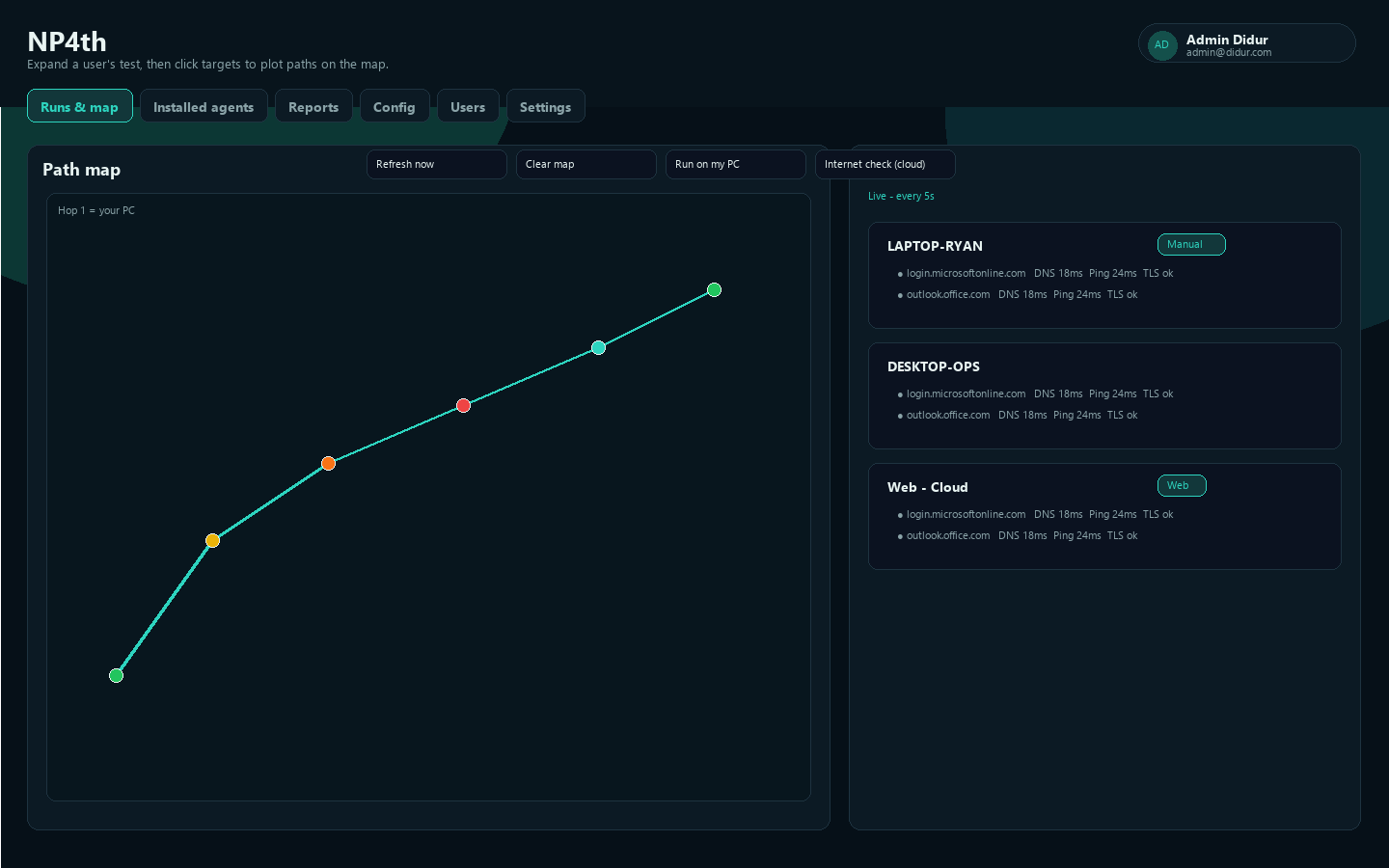
Runs & map is the home view. Hint text: expand a user's test, then click targets to plot paths on the map.
- Path map — hop paths for selected targets. Hop 1 is the endpoint (Windows location when allowed; otherwise a public-IP estimate). Private/reserved hops are skipped for geo.
- Test runs — expandable computer names with per-target results. Search:
Search user, machine, IP.... Destination filter: All destinations. - Live refresh badge: Live - every 5s. Buttons: Refresh now, Clear map, Run on my PC, Internet check (cloud).
Manual badge = human-triggered run. Web badge = cloud / web-sourced check.
Open Probe alerts (consecutive TLS/target failures) appear in a banner above the map when the failure threshold is reached. High severity is used when CrowdStrike Falcon is present on the endpoint but cannot reach Falcon cloud hosts.
Cloud Internet check
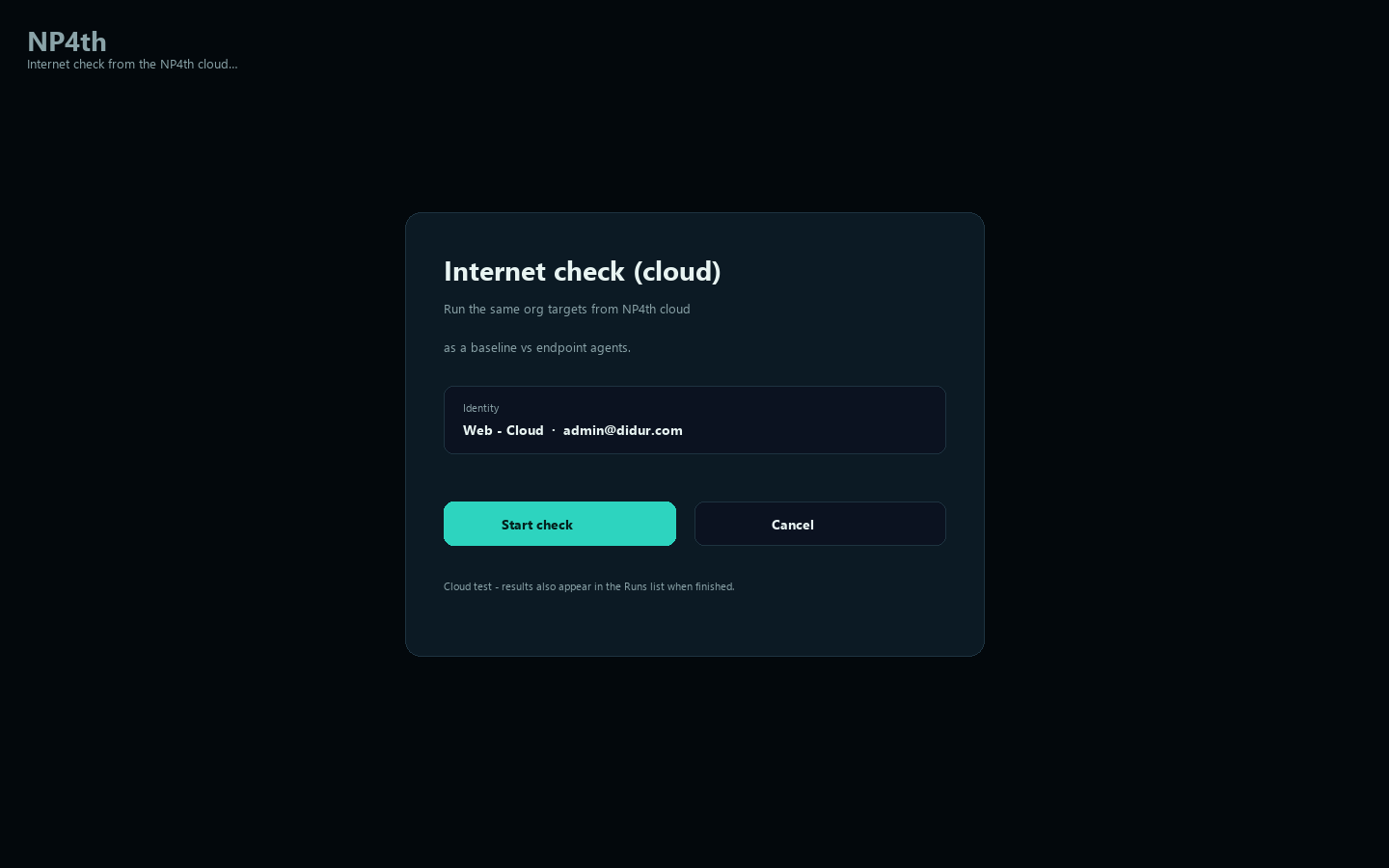
Internet check (cloud) runs the same org targets from the NP4th cloud so you can compare endpoint paths vs a known baseline.
- Click Internet check (cloud).
- Confirm the cloud modal (identity like Web - Cloud / your email).
- When finished, results appear in the Runs list with a Web badge.
Reports
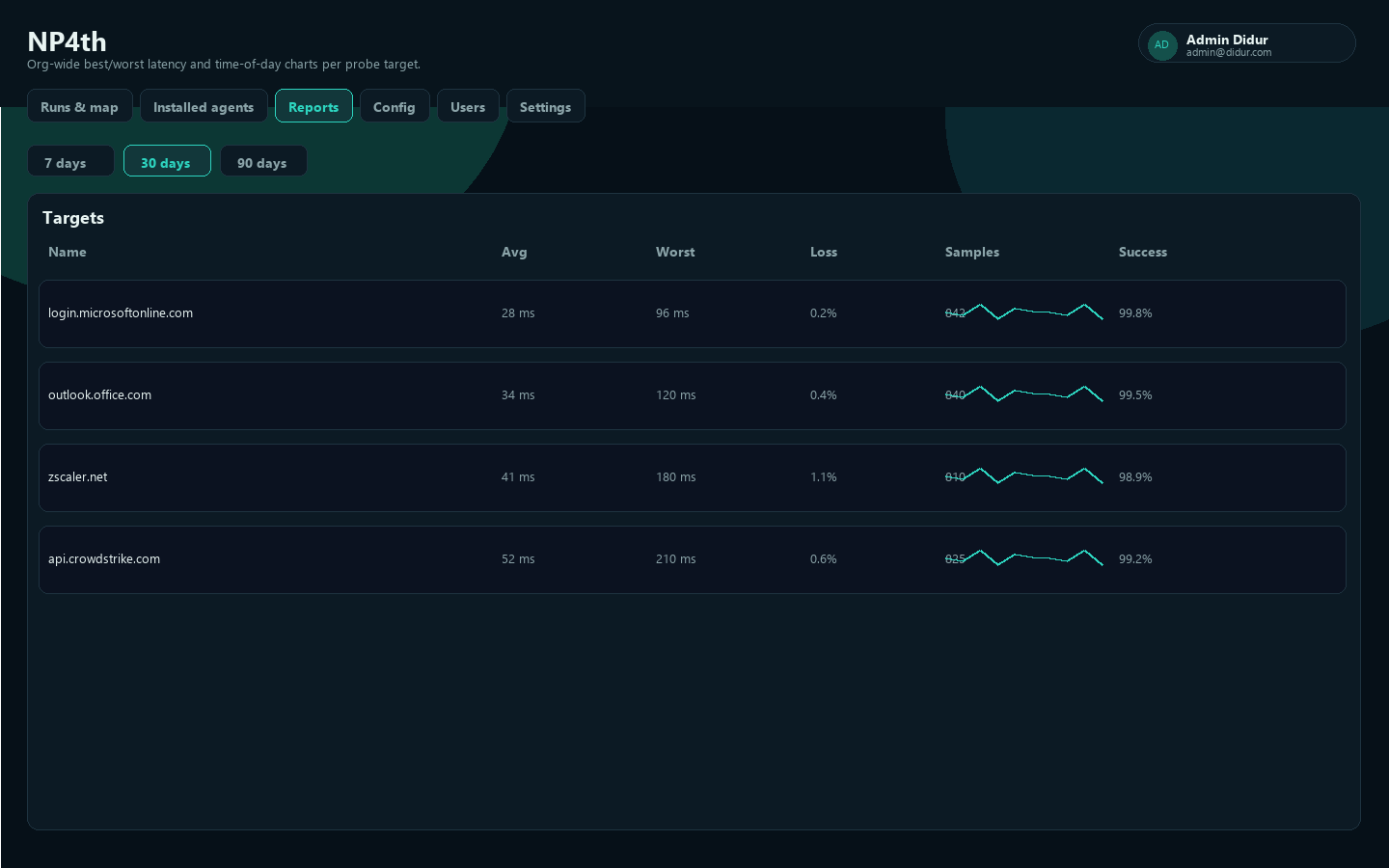
Reports shows org-wide best/worst latency and loss by destination, plus time-of-day charts. Search on Runs does not filter reports.
- Range chips: 7 days, 30 days, 90 days
- Sort: Name, Avg, Worst, Loss, Samples, Success
Installed agents
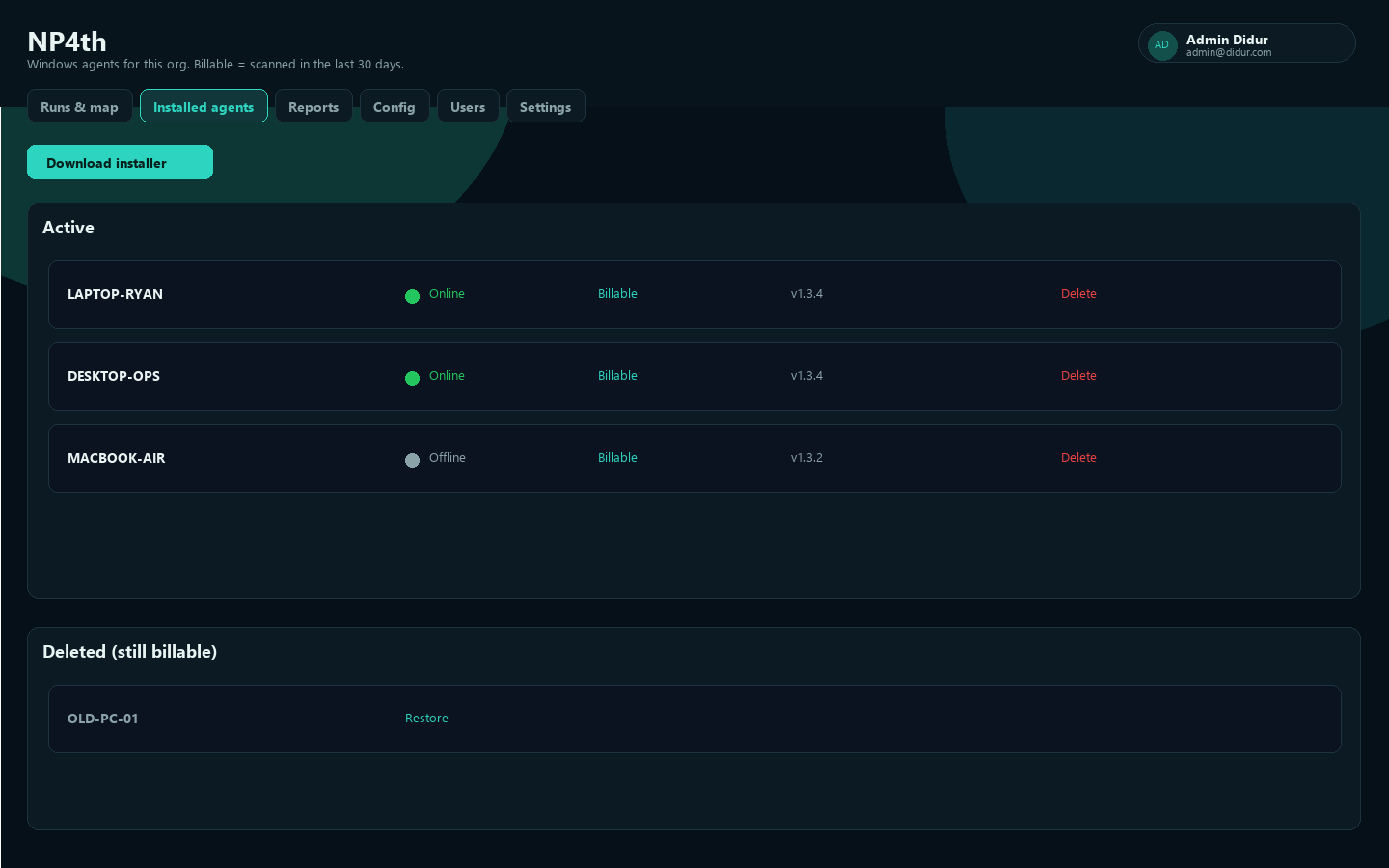
Installed agents lists Windows (and Mac) agents for the org.
- Online = heartbeat or run upload in the last 15 minutes
- Billable = seen or uploaded in the last 30 days
- Device id is the stable machine identity (Windows
MachineGuid/ Mac hardware UUID) - Download installer fetches the current package
- Force update queues an immediate update check on online Windows agents (even if auto-update is off)
- Soft-delete moves a machine to Deleted (still billable) until the 30-day window expires; Restore returns it to active
Config
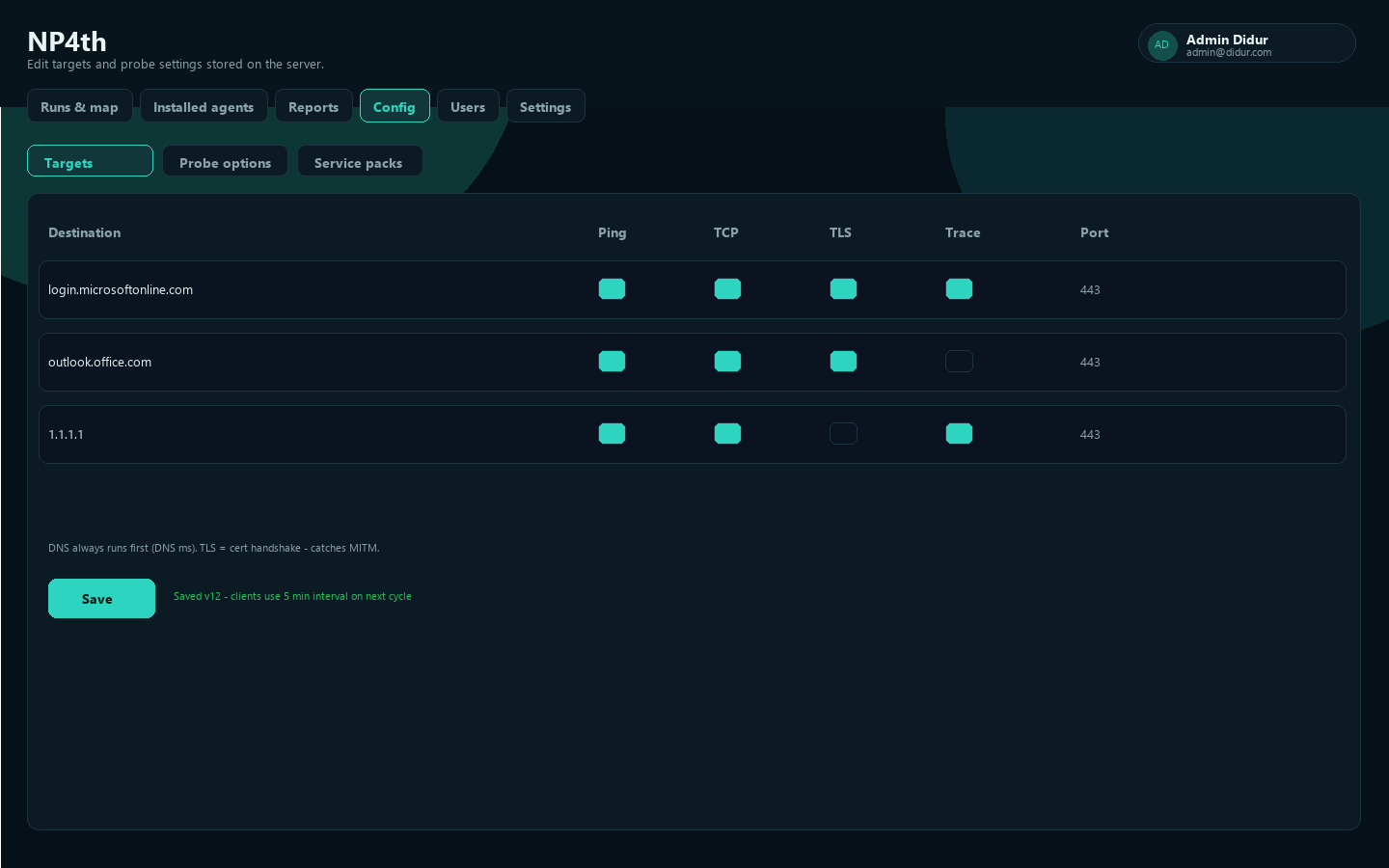
Config (Owner/Admin) edits targets and probe settings stored on the server. Agents sync before each test run. Sub-nav: Targets | Probe options | Service packs.
See Probe targets & service packs for check types and intervals.
Users
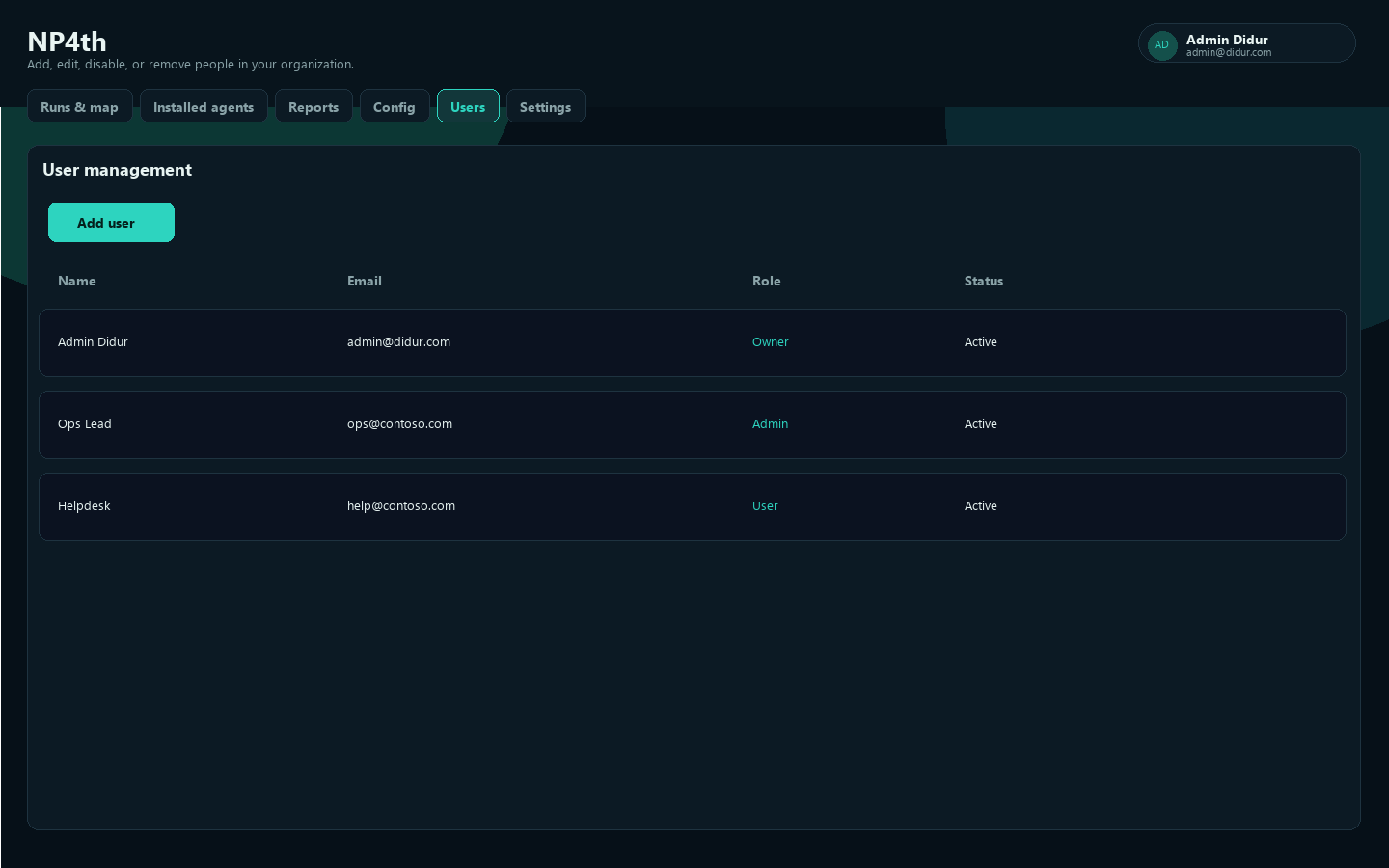
Users (Owner/Admin) opens User management: add, edit, disable, or remove people. You can lock a role so Entra groups do not change it.
Settings overview
Settings covers organization preferences and admin tooling:
| Sub-nav | Who | Purpose |
|---|---|---|
| Profile | Everyone | Your account profile |
| Organization | Admin/Owner to edit | Org name and related settings |
| Agent keys | Admin/Owner | Agent authentication keys |
| Encryption | Admin/Owner | BYOK wrap key options |
| SAML SSO | Admin/Owner | Entra / SAML 2.0 |
See Agent keys and SSO / SAML.