Getting started - Windows
Install the NP4th Windows agent, connect it to your organization, and confirm your first run appears on the dashboard.
Prerequisites
- An NP4th organization with an Owner or Admin account at app.np4th.com
- Windows 10/11 (x64) with permission to install software
- Outbound HTTPS to
https://app.np4th.com - Windows Location enabled for desktop apps (required for interactive tests that need a location)
- The NP4th Windows service Running (scheduled background probes while the PC is on)
- Optional but recommended: signed-in tray session for the UI and dashboard Run on my PC (user VPN / firewall context)
Create an agent key
- Sign in at app.np4th.com.
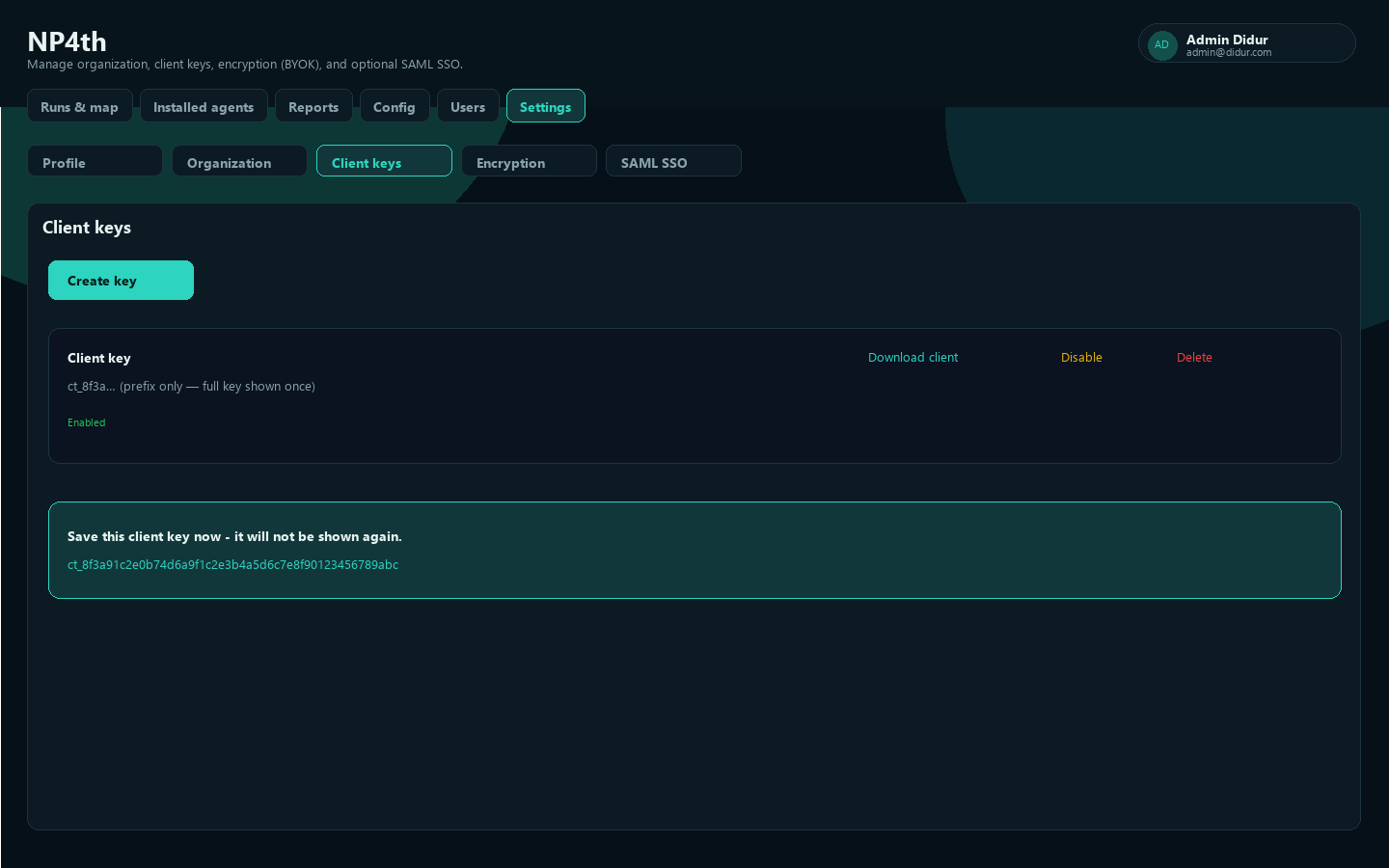
- Open Settings → Agent keys.
- Choose Create key (default name:
Agent key). - Copy the raw key immediately. It starts with
ct_and is shown only once.
Prefer a baked installer from Download agent so endpoints do not need to paste the key by hand.
Download the installer
From Installed agents, use Download installer, or from Agent keys use Download agent for a ZIP that includes:
NP4thSetup-<version>.exe(e.g.NP4thSetup-2.0.2.exe, when published on the server)client-config.json(tenant, key, API URL)Install-NP4th.cmd
Extract the ZIP to a folder before running the install script. Do not run Install-NP4th.cmd from inside the ZIP window.
Install (interactive or silent)
Interactive: run NP4thSetup-<version>.exe and enter API URL, Tenant slug, and Agent key if they are not pre-filled.
Silent:
NP4thSetup-2.0.2.exe /SILENT /TENANT=your-slug /KEY=ct_... /URL=https://app.np4th.comSilent install requires /TENANT= and /KEY=. /URL= defaults to https://app.np4th.com.
MSI (Group Policy / msiexec)
Use the versioned MSI (NP4th-<version>.msi, or stable alias NP4th.msi) when you need Group Policy Software Installation or a pure Windows Installer deploy. Public properties:
msiexec /i NP4th-2.0.28.msi /qn TENANT=your-slug KEY=ct_... URL=https://app.np4th.comTENANTandKEYwriteclient-config.json(tray + service). Omit them only if you will push config another way.URLdefaults tohttps://app.np4th.com.- Uninstall:
msiexec /x NP4th-2.0.28.msi /qn, Start Menu Uninstall NP4th, or Apps & Features.
For GPO, assign the MSI under Computer Configuration → Policies → Software Settings → Software Installation. To bake tenant/key without a command line, create an MST (transform) that sets TENANT, KEY, and optionally URL, then deploy msiexec /i NP4th.msi TRANSFORMS=np4th.mst /qn (or attach the MST in the GPO package properties).
The EXE Setup remains the default for Download agent / silent auto-update. Prefer MSI when AD/GPO is the install channel.
The installer places binaries under Program Files (NP4th), starts the tray app (NP4th.exe), and registers it to start when you sign in. Background probes run in that user session (not as LocalSystem) so they see your user-based firewall rules.
The NP4th Windows service (LocalSystem) handles silent auto-updates only — no UAC prompt. Automatic updates are on by default; uncheck tray Automatic updates to disable scheduled installs (preference is kept under LocalAppData / ProgramData). At login the tray asks the service to check when auto-update is on; tray Check for updates still works even when automatic updates are off. Confirm the service is Running (services.msc → NP4th) if updates never apply.
Uninstall
- Start Menu → NP4th → Uninstall NP4th (or Apps & Features → NP4th)
- EXE Setup:
NP4thSetup-<version>.exe /UNINSTALL(silent:/SILENT /UNINSTALL) - MSI:
msiexec /x NP4th-<version>.msi /qn - Or:
"C:\Program Files\NP4th\Uninstall NP4th.cmd"(elevates; prefers Inno/MSI uninstall, else removes files)
Machines stuck on old agents (e.g. 1.3.3) that never auto-update usually need a one-time uninstall, then a fresh install of the current Setup from the dashboard. From Installed agents you can also use Force update on online Windows agents that already have a current enough package.
First tray run
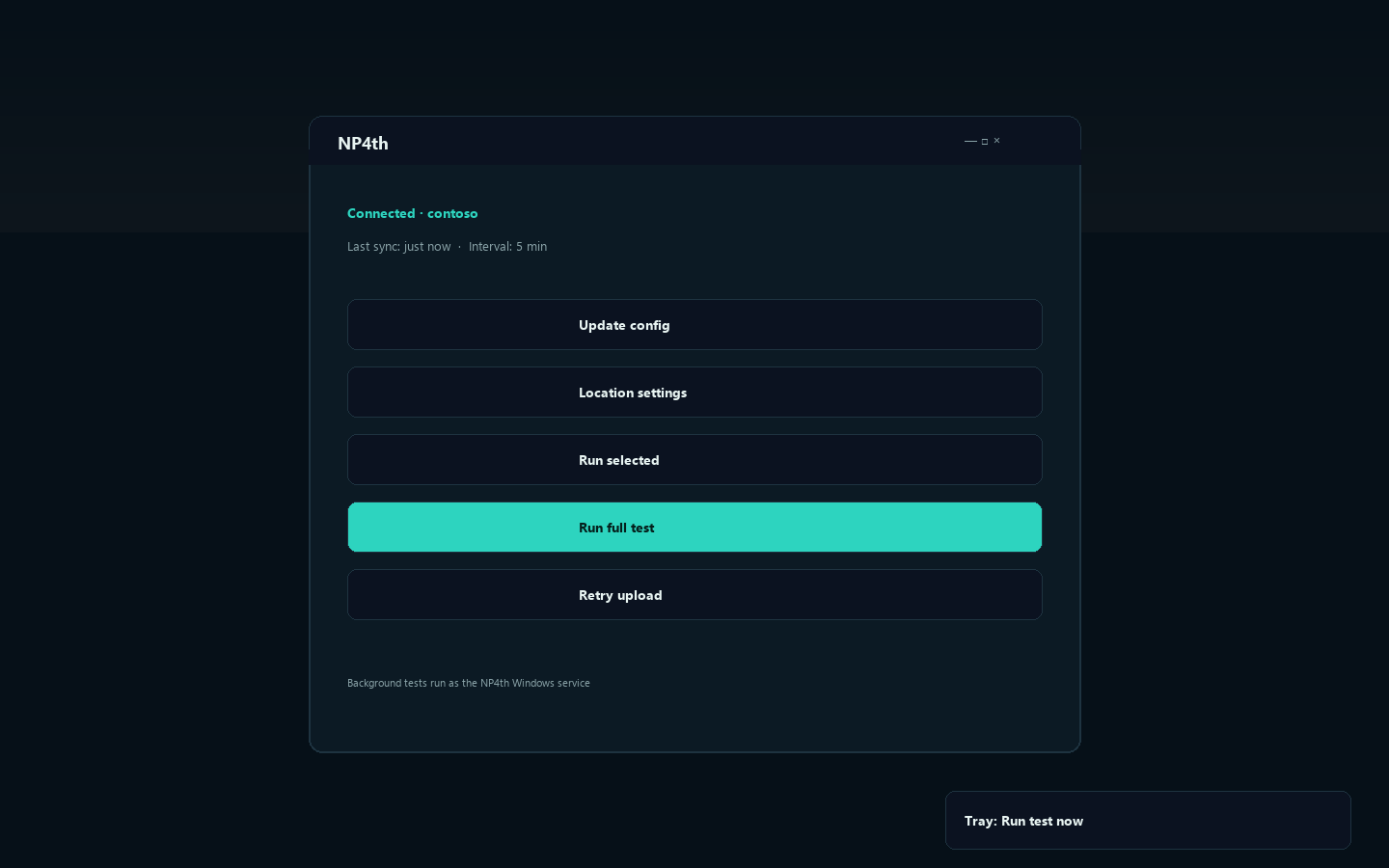
- Allow Location for desktop apps when Windows prompts you.
- Leave the tray running after sign-in — scheduled tests use your org Test interval (minutes) as your Windows user.
- Open the tray menu for Run test now, or open the UI for Update config / Run full test / Run selected.
Use Update config after an admin changes targets or probe options so the next run picks up the latest server config. Do not Quit the tray if you want continuous user-context monitoring.
Verify on the dashboard
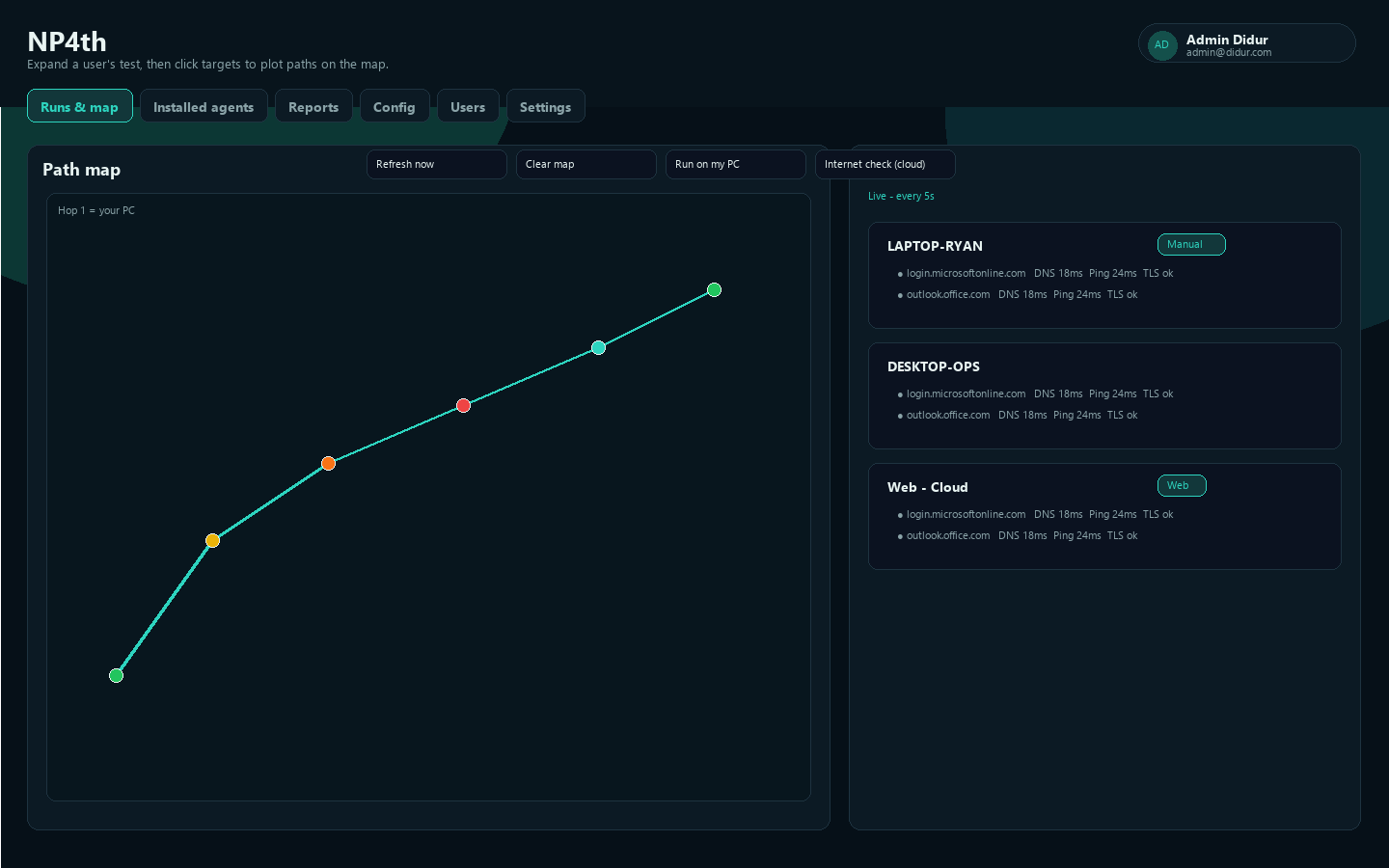
- Open Runs & map.
- Expand your computer name in Test runs.
- Confirm targets show DNS, ping/TCP/TLS (as configured), and that a Manual badge appears on human-triggered runs.
- Click targets to plot hop paths on the Path map.
Location permission
Interactive tests that need a location require Windows Location to be on and desktop apps allowed. Use Location settings in the agent if a run fails with a location error. Background tray probes still upload when the agent can reach the API; map hop geo may fall back to a public-IP estimate when Windows location is unavailable.